How to Debloat a Smart TV With Claude Code
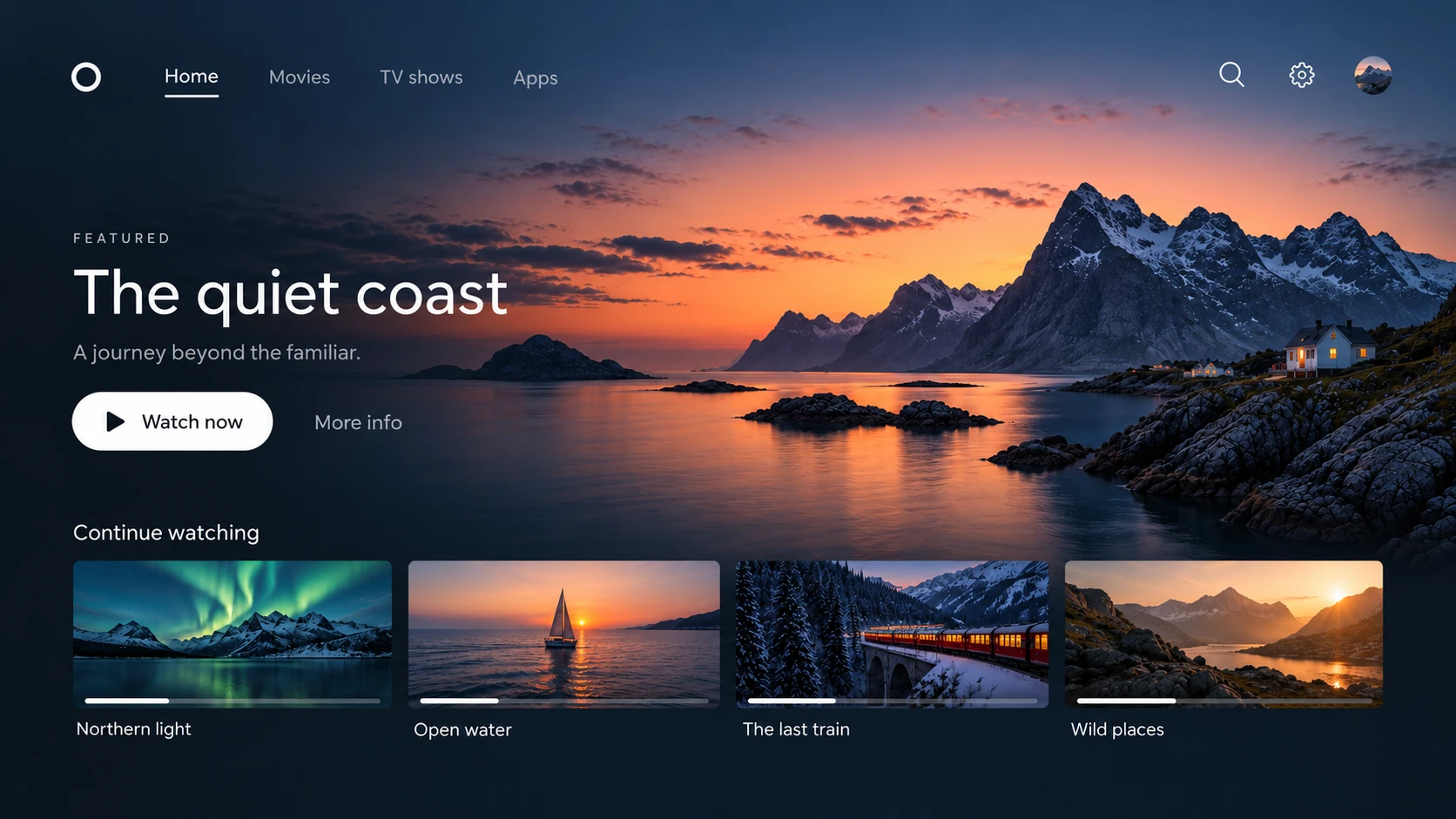
Turn off the ads and tracking on your smart TV and replace the home screen with a plain launcher. Steps for Android TV, Google TV, LG and Fire TV, and how to undo each one.
October 19, 2026Earlier in my career I designed part of a major smart TV interface. I won't say whose. There was the same friction in every review.
The design team wanted the home screen to do one thing well: get the user to what they wanted to watch. The product and business teams wanted a spot for a partner, then a banner, then a promoted app, then a new data feature that needed a background service. Each request made sense on its own, and each one was tied to revenue. We lost many of those arguments, and I don't think anyone was acting in bad faith. A TV is sold near cost, so the screen has to earn money after the sale.
So I wasn't surprised when people started pointing coding agents at their TVs to get rid of the ads. The home screen is an app, and it's where every banner and partner slot lives. Replace the app and they're gone.
How to debloat your TV
Just point Claude Code at it. On an Android TV, Clean Your TV is one long prompt you paste in. It switches off the ad and telemetry packages, then installs a plain launcher with the apps you use. Other people have ported it, and how much carries over depends on your TV:
- Android TV and Google TV: both. One prompt to Claude Code does it.
- LG webOS: the launcher only. webOS can't disable packages.
- Fire TV: both, through community forks of the Android project.
- Samsung: nothing I could find.
If you'd rather click than prompt, Android TV Tools and ADB AppControl list the installed packages and switch them off with buttons. You still have to know which of 200 are safe to turn off. That sorting is what the agent does for you.
Decluttering the screen
A stock home screen is built around what the manufacturer wants to show you. The launcher replaces it with one built around the apps you use.

Source: Clean Your TV, by Gathin.
Once it's installed you can change how it looks. The launcher's settings on the TV let you show 4 to 7 apps per row, and themes change the colors, wallpaper and columns. Other owners have gone further and built their own versions for their TVs. The showcase page lists 19, including these:
- tv-bookshelf on a Sony Bravia: each app is a 3D book on a bookcase.
- Cosy Home on a Philips OLED: a sunrise-aware backdrop, live weather and OLED pixel shift.
- KIDŌ on a Sharp Aquos: a seven-segment clock, app panels and no internet permission.
- CleanXiaomiTV on a Xiaomi: a photo of the day, a now-playing card and weather.
- Stremio shelf: a poster shelf and a dock that peeks over whatever is playing.
Before you start
I'm a designer, not a lawyer, and I'm not affiliated with any TV maker or any of the projects above. This is for your own TV, for personal use and for learning how it works. Changing system software can void a warranty, break an app, stop firmware updates, or in a bad case leave the TV stuck on a boot screen. Terms of service differ by manufacturer, so read yours. If you do this, you do it at your own risk.
You need a computer on the same Wi-Fi as the TV, Claude Code, and about an hour of patience with menus. Three rules apply to every TV below:
- Back up the list of installed apps before you change anything.
- Disable packages, never uninstall them. A disabled package comes back with one command.
- Get the new launcher running and set as the default before you touch the stock one.
Start with the settings
This takes five minutes and needs no code, and it works on any TV. Turn off anything about viewing information, interest-based ads, personalized recommendations or content recognition. Content recognition, or ACR, is the one that tracks what's on your screen. In December 2025 Texas sued five TV makers over it, alleging it was switched on during setup without clear consent. The cases are still going. The names change by brand and the menus are buried, so try searching the settings for "ads" and "viewing."
On an LG, the webos-vibehack docs give these two places, though the names vary a little by webOS version:
- Settings, General, System, Additional Settings, Home Settings: turn off Home Promotion and Content Recommendation.
- Settings, Support, Privacy & Terms, User Agreements: untick Viewing Information and Interest-Based Recommendations.
Android TV and Google TV
This covers Sony, TCL, Hisense, Philips, Nvidia Shield and many others. With Clean Your TV you paste its prompt into Claude Code and tell it your TV model. It connects over Wi-Fi, backs up what's installed, asks which apps you use, installs the launcher, and then disables the ad and telemetry packages. The author says nothing gets deleted, and a restore script turns it all back on. If you'd rather drive it yourself, this is the manual route.

Aurora theme. Source: Clean Your TV.

Six columns and a six-app dock. Source: Clean Your TV.
1. Turn on debugging. Go to Settings, System, About, and tap Build several times until it says you're a developer. Then open Developer options and switch on USB debugging and, if it's listed, Network or Wireless debugging. Write down the TV's IP address from the network settings.
2. Put adb on your computer. It's Google's free command-line tool for talking to Android devices, part of the platform-tools download. Check that it runs:
adb version
3. Connect. Use the IP address you wrote down:
adb connect YOUR.TV.IP.ADDRESS:5555
The TV will ask whether to allow this computer. Say yes. Newer versions of Android use a pairing code first, and your TV shows it on screen.
4. Back up. Save the full package list to a file, so you can see what changed later:
adb shell pm list packages -f > before.txt
5. Install the launcher first. Open a terminal in an empty folder and tell Claude Code what you want the home screen to be. Something like this works:
My TV is connected over adb at this address. I want a plain launcher as the home screen: rows for the apps I use, no ads, no promoted content. List the installed apps and ask me which ones go on it. Install a launcher, set it as the default, and confirm Home opens it. Don't disable anything yet.
Press Home and check that the new launcher opens before you go any further.
6. Then remove the old home screen's ad sources. Hand it the second job:
Now list every installed package and sort them into three groups: needed for the TV to boot and update, apps I use, and ads, telemetry or preloaded junk. Show me the third group and explain each item. When I approve, disable packages with pm disable-user, never uninstall, do it in small batches, and write every change to a log file so it can be reversed.
Read the list yourself. Anything with "setup," "provision," "launcher," "update," or the manufacturer's name in it deserves a second look. The Clean Your TV page warns that disabling the stock launcher or the setup wizard before a replacement is in place can send some Google TVs into a crash loop.
7. Test after each batch. Check that the TV wakes up, opens your streaming apps, and plays sound. If something breaks, you know which batch did it.
8. Know your way back. To undo a package, use the enable command with its name:
adb shell pm enable PACKAGE.NAME
If the TV stops responding to your computer, go to Settings, Apps, find the disabled ones and re-enable them from the TV itself. When you're done, turn USB debugging off again.
LG webOS
On an LG you're installing an app, not modifying the system. LG locks things down more than Google does, so there's no debloat step. webOS can't disable packages, which is why the settings section above matters more here. The launcher is the whole project.
webos-vibehack was ported by a developer named OmkarK97 and tested on an LG OLED C6. You install it through LG's own Developer Mode with a free developer account. Nothing is rooted, and firmware updates keep working. This is the short version, and the README has the exact commands.

On an LG OLED C6. Source: webos-vibehack, by OmkarK97.
- Make a free account on LG's developer site, install the Developer Mode app from the LG Content Store on the TV, and sign in.
- Turn on Dev Mode Status (the TV restarts), then turn on Key Server and note the IP address and passphrase it shows.
- On a Mac on the same Wi-Fi, connect with LG's ares command-line tool, then clone the repo and run its install script. Right now the install steps are macOS only.
- Accept the pairing prompt on the TV. The script reads your installed apps and builds the launcher around them.
webOS always sends the Home button to LG's home screen. To get around that, a small script on another device on your network watches the TV and switches back to the new launcher within a fraction of a second. Run it on something that stays on, like a Raspberry Pi. Without it, Home still opens LG's screen and the new launcher is one more app you open yourself.
Developer Mode sessions expire, so every so often you'll need to open the app and press Extend Session Time, or your installed apps stop launching. Deleting the Developer Mode app removes everything, which is how you undo it. The README also says pairing can fail on newer firmware and gives a workaround, so read its troubleshooting section before you assume something is broken.
Fire TV
The step-by-step above is written for Android TV and Google TV, and I haven't tested it on a Fire TV. Three projects in the Clean Your TV showcase target Fire TV. fire-tv-cleanup has debloat tools and a launcher with a macOS-style dock. Fire TV Glass tests on a Fire TV Stick 4K and brings its launcher back whenever Amazon's home screen appears. A Home watcher for Fire OS 6 does the same thing. Read each README for the exact steps.

Stock Fire TV home and Glass. Source: Fire TV Glass, by ivantrj.

Ads on top, the launcher below. Source: fire-tv-cleanup, by itsmeterrylin.
Samsung and others
I haven't found a comparable project for Samsung's Tizen, so there are no screenshots here either. The settings route is your best option on a Samsung.
Glasshouse covers rooted LG TVs with a dashboard and an ad and telemetry blocker. It needs a rooted TV, so I'm not covering it here.
Is it worth it?
It takes some care and carries some risk. Back up first and disable instead of uninstalling to keep that risk down.
In return, Home opens a screen with your apps on it and nothing else.