How to get realistic skin in Z-Image Turbo: checkpoints, LoRAs and settings tested
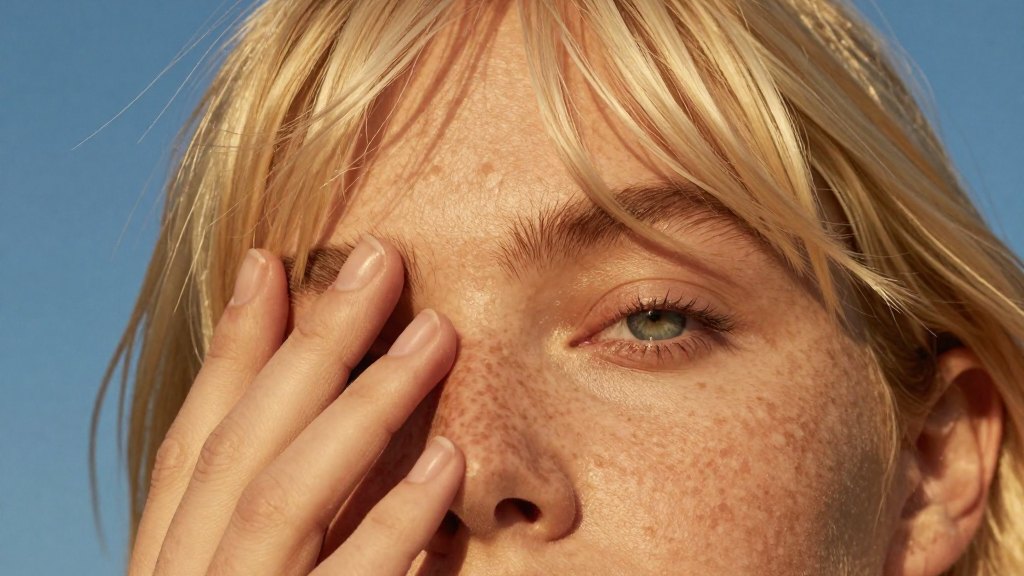
Z-Image Turbo settings, four checkpoints and two realism LoRAs on one freckled portrait. The one setting that brings pores back, and what makes skin waxy.
Z-Image Turbo makes good faces, but the skin often comes out smooth and waxy, like plastic. I wanted skin that looks like a real photo: freckles, pores, fine hair and a little shine.
To find out what helps, I ran one portrait through Z-Image's settings, four community checkpoints and two realism LoRAs. Then I compared the skin up close, cheek and eye at full size.
What I found:
- Shift 2 is the biggest fix. Dropping the shift from 3 to 2 brings the pores back, and it costs nothing in speed.
- No checkpoint beat the base model on skin. Stable Yogi matched it in half the time. Fascium was the waxiest.
- The LoRAs change the photo more than the skin. Realistic Snapshot gives better hands and framing but smoother skin. Radiant Realism makes it a glam beauty shot.
Everything was tested on one prompt: a freckled woman in hard late-afternoon sun with her hand across her face, at 4:5, on the same seeds. Hard sun is the least forgiving light for skin, so the differences show quickly. It's still one face, so test on your own subject too.
The prompt
Most of the realism comes from the prompt, before any setting. Name the skin: freckles, pores, peach fuzz, redness, a little sheen. Name the person's coloring too, or Z-Image picks it for you. My early tries kept coming back with the same default face until I wrote in hair color and skin.
tight close-up portrait of a young woman, her face filling the frame, cropped just above her bangs and below her chin, shot from slightly below against a deep saturated blue sky, platinum blonde hair with heavy bangs cut in a perfectly straight line across her brow, a few loose strands lifting in the wind against the sky, her head tilted and turned three quarters toward the camera, her near eye pale blue and sharp, looking straight into the lens, the fingertips of one hand resting lightly on the bridge of her nose and her brow, her fingers covering only her far eye, lips slightly parted, dense ginger freckles across her nose, cheeks and forehead, visible pores, fine peach fuzz on her cheek, sun-warmed golden skin, hard direct low golden sun from the right in late afternoon, the crisp shadows of her fingers falling across her far eye and cheek, warm glowing highlights on her cheekbone, nose and the edges of her fingers, the shadows warm and clean, the collar of a white shirt at the bottom of the frame, editorial fashion photograph, warm golden skin tones against the deep blue sky, 85mm lens, crisp focus on her near eye, fine film grain
Two phrases backfired. "A shine of skin oil" made her greasy, and "hard direct flash" lit the whole face evenly, which flattened the texture. Hard sun from one side, with something casting a shadow, does the opposite. For more on writing light, see the lighting prompts post.
Checkpoints and settings
Pick a checkpoint and a setting. Every combination was rendered, so you can check, say, whether shift 2 rescues Fascium.
Settings
Shift is the one that matters. It changes how Z-Image splits its 8 steps between rough shapes and fine detail, and at 2 it spends more of them on detail. That worked on base Z-Image, Stable Yogi and MS. Fascium barely moved at shift 2, and only shift 1 brought some texture back. Shift 1 goes further on the others too, with fine lines under the eye, and starts to look dry. 16 steps adds freckles and grain but doubles the time. The full rundown of every setting is in the Z-Image settings post.
A few things didn't earn a place in the picker. The beta scheduler did almost nothing. dpmpp_sde changed her face, which is no help when you're comparing. I also tried a second pass, a common trick for adding detail: make the image, enlarge it 1.5 times, then have the model redraw it lightly so it fills in finer texture at the bigger size. It took 3.5 times as long, and the extra detail is hard to see even up close. They're all in the close-ups at the bottom.
Checkpoints
Stable Yogi's 2603 build is almost the same picture as base Z-Image and runs in 4 seconds instead of 8. The speed comes from the NVFP4 file, which RTX 50-series cards run fast, so I'd expect the fp8 version to run at the usual speed. MS Z-Image Turbo V3 gives a deeper sky, but the skin swings from textured to waxy depending on the seed. Fascium's "Being Boring" build has the waxiest skin of the four, which is the opposite of what the name promised. CyberRealistic is the other popular realism fine-tune, and it's paid, so I left it out.
Realism LoRAs
These change the whole frame, so the pictures don't line up side by side. Click a thumbnail to swap the large image, and switch to Close-up to check the skin.
Realistic Snapshot at 0.6 made the most interesting pictures of the whole test. Her fingers rest at her temple or along her cheek instead of pressing flat over her face, the crop gets tighter and less centered, and the shadows get harder. The skin pays for it, with fewer freckles and softer pores. I tried 0.4 and 0.5 hoping to keep the framing and get the skin back. The framing showed up at 0.4, and so did the smoother skin.
Radiant Realism at 0.6 turns it into a beauty shoot: eyeliner, a glossy tan, heavy brows and a strong jaw. On some seeds the gloss reads as wax. Use it when you want a beauty shot.
Every close-up
Cheek and eye at full resolution. Click one to open it large, and switch to the full frame from there.
What I'd use
For skin, base Z-Image or Stable Yogi at shift 2, no LoRA, with the skin written into the prompt. For a picture that looks like someone directed it, add Realistic Snapshot at 0.4 to 0.6 and accept smoother skin. For a beauty shot, Radiant at 0.6.
Try shift 2 before you download anything.